Getting started with HEYVN
Profile photos that look like you and fit your work
An ordinary setting, a few careful choices and a final check in your private preview.
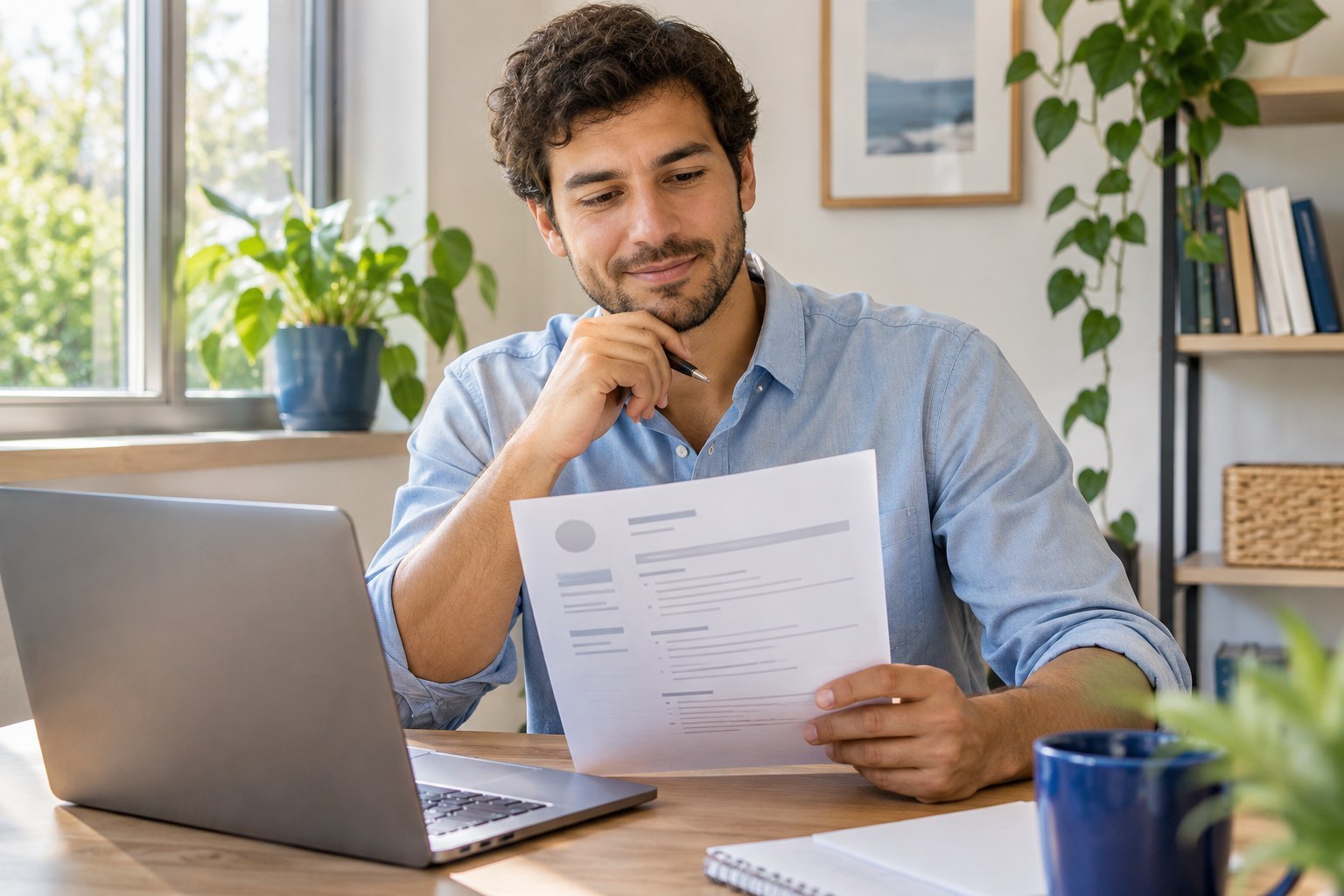
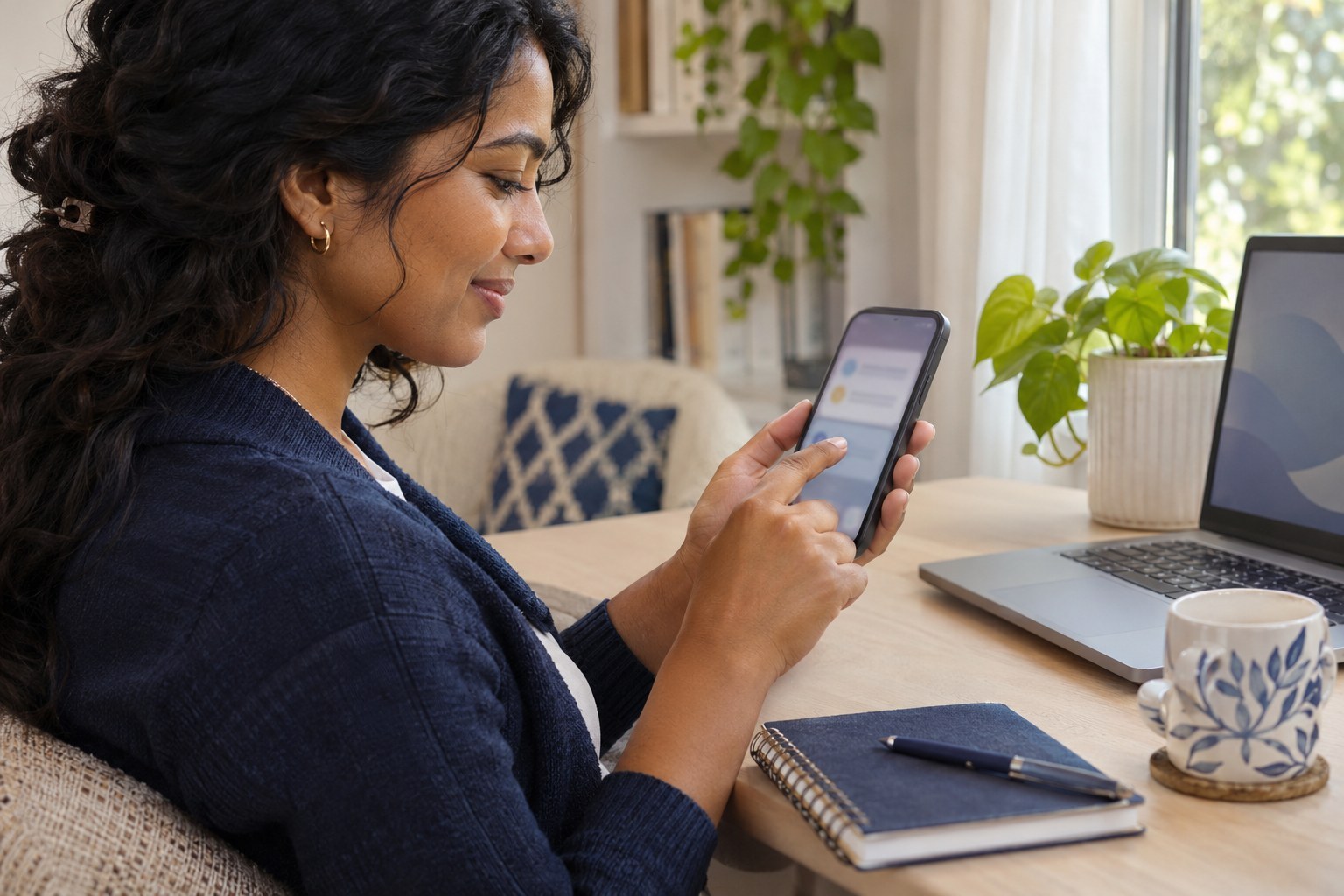
A useful profile photo should help someone recognise the person they may speak with. You can make a thoughtful photo at home with a phone. Start with your main portrait; additional photos are an optional choice, not a reason to delay checking your basic profile or publishing a ready job search.
Start with a recent, recognisable portrait
Choose a photo that still looks like you. Keep yourself as the clear subject, with your face visible and enough space around your head and shoulders for a crop. A simple background and soft light are good starting points; a costly studio session is not necessary.
Wear something you would comfortably choose for a conversation about your work. There is no single outfit for every profession. A natural expression and a truthful image are more useful than editing yourself into a different person.
Try a simple phone setup
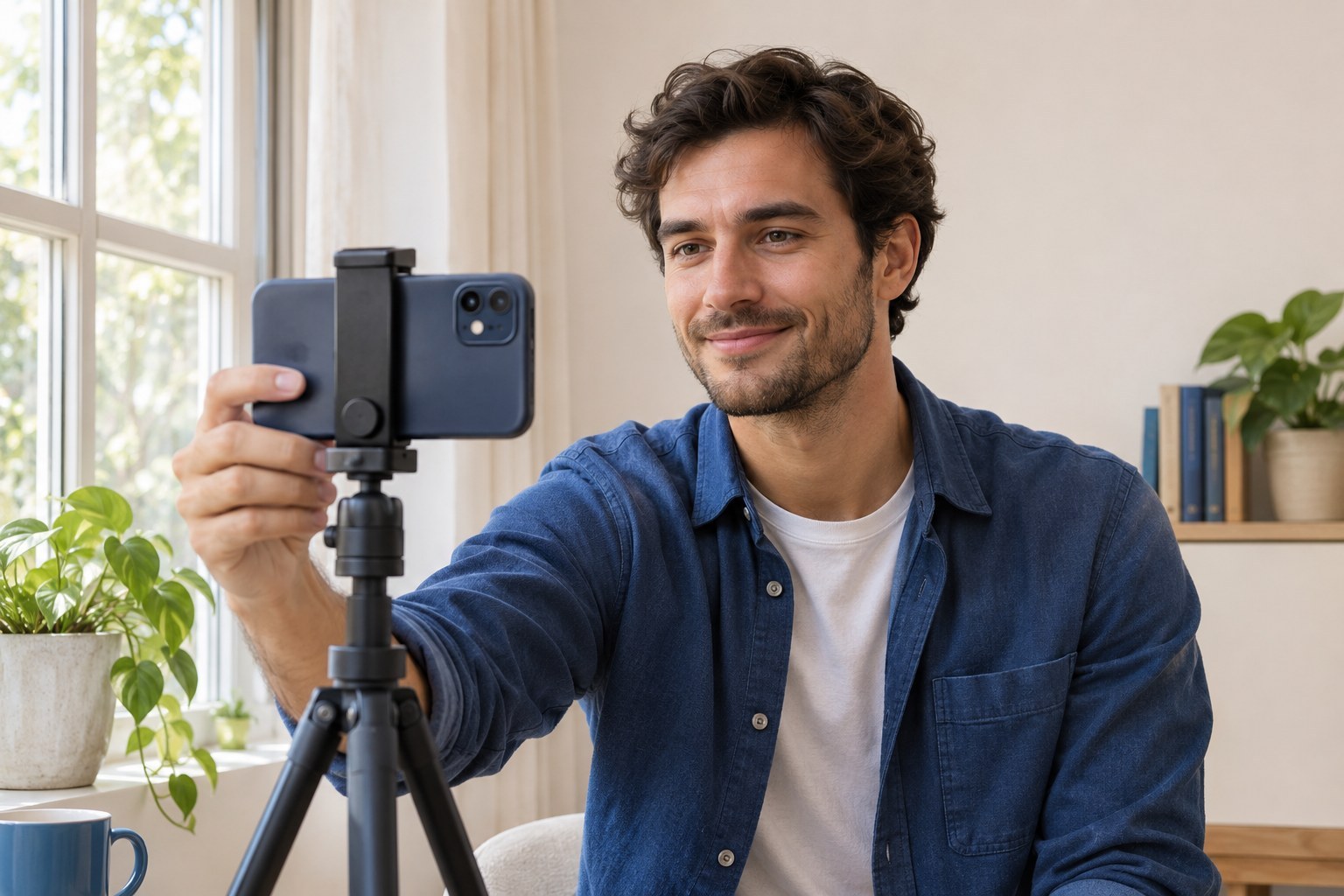
Clean the camera lens and place the phone steadily, near eye level. Face a window with soft light rather than putting a bright window behind you. Take a few pictures, then look closely at the face before choosing one.
For example, stand a little away from a plain wall, keep the phone upright and use its timer. Leave room above your head so the portrait crop does not cut it off. If a friend helps, ask them to check that the picture is sharp and that the background is clear.
- Check for a distracting object behind your head.
- Remove visible addresses, ID badges or confidential screens from the frame.
- Keep the camera at a comfortable distance rather than using a very close wide-angle selfie.
Choose one main photo before adding a gallery
Compare your pictures at the size you would actually view on a phone. Choose the one in which your face is clear. Avoid group shots that leave the viewer guessing, heavy beauty filters, another person’s photo or a generated replacement for your own face.
On HEYVN, the starred picture is your profile photo. It is prepared with a consistent HEYVN background. The other photos keep their original backgrounds, so look carefully at what each of those backgrounds reveals.
Give an extra photo a reason to be there
An additional photo can show a different relevant view of you, such as a wider professional portrait or a safe work setting you are allowed to show. You do not need several near-identical selfies. Start with one extra picture only if it adds something you want an employer to see.
A portrait in a plain shirt and a second picture in appropriate work clothing could be useful choices. A photo of someone else, a customer, a confidential workplace or an identity document is not a suitable substitute. Do not stage unsafe work just to make a picture.
Use Portfolio for work samples that need a title and context, such as a project image or design. Profile photos and a collection of work serve different purposes.
Upload and check the main-photo choice
Sign in, open My profile and choose Profile photos in Basic information. Use Add a photo, then choose a file or take a selfie if the camera option is available. The editor shows supported formats and the current size limit; follow those instructions.
An uploaded picture can still be preparing or processing. Wait until it is ready, then use the star on the picture you want as your main portrait. Look at the prepared portrait as well as the source image: check the crop, head position and edges. Use another source photo if the result does not look right.
- The star shows which ready photo is the main profile photo.
- A failed photo may offer Retry or Delete; read its current status.
- If you delete a file you still need, keep your own original so you can choose it again.
Included photos and additional-photo slots are different
My profile separates Basic information from Add-Ons. The Profile photos card lets you manage the included photo allowance; an Additional profile photos card can also appear in Add-Ons when that option is offered. Both lead to the photo editor.
The page shows the current included allowance and any optional extra slots. A photo being uploaded or ready does not by itself unlock a paid extra slot. If an extra-photo add-on needs unlocking, review the available action and current terms before confirming. Prices, funding methods and the number of slots can change; use what the page shows.
Check the result and your job-search status
If your job search has View, open your signed-in private preview to inspect the employer-style layout. Check which eligible photos appear and which picture is the main one. This preview does not turn the page into a public link or unlock an add-on.
Look separately at My job search to see whether the promotion is Published. Uploading a photo is not the same as publishing a job search. You can prepare your main photo now and decide about optional additions later.
- My main portrait is recent, recognisable and clear in a small view.
- The background and any extra pictures reveal only what I intend to share.
- I have checked readiness, the star selection and any separate extra-photo unlock.
- My next step is to open Profile photos and choose or check one good main image.